
Your first week with LoadTally
From signing up to the first payday: set up the company, add a load, record the settlement, pay the driver.
LoadTally follows the week you already have. Dispatch sends a load, the driver runs it, the carrier pays a settlement, and on Sunday you pay the drivers. The app takes the paperwork from each of those steps and does the typing, the matching, and the math. Here is the first week, screen by screen.
Day one: start the company
- Sign up. Your email, a password, and the company’s name, then a card. The first 30 days are free and nothing is charged until they end; the card is so nothing stops when they do. You land on This week, which is empty for now.
- Open Setup. It is the last item in the menu. Everything you set once lives there, in tabs, so no page is a wall of boxes.
- Company. Your name, the yard, and your address. The yard is where empty miles are counted back to; the name and address print on the driver pay reports and the year-end summary.
- Carriers. Who you run for, and your share of each order — the percentage on their settlement sheet. That share is what they pay you, not the driver; the app uses it to check their sheets. Under it, What a fair load looks like holds the figures every load is graded against — detention, TONU, the rate floor — which start at common ones.
- Lanes. Optional: the runs you make every week, with the miles set once so the map can’t answer differently each time.
- Trucks. Each tractor’s number and the account the carrier settles it under, so their sheets land on the right truck.
- Pay. How often you pay and on which day, whether new loads start with the empty miles paid, and the starting rates a new driver gets.
- Drivers. Each driver’s name, their carrier code, and the truck they usually take. Then, on the driver’s own page, what you pay them a mile.
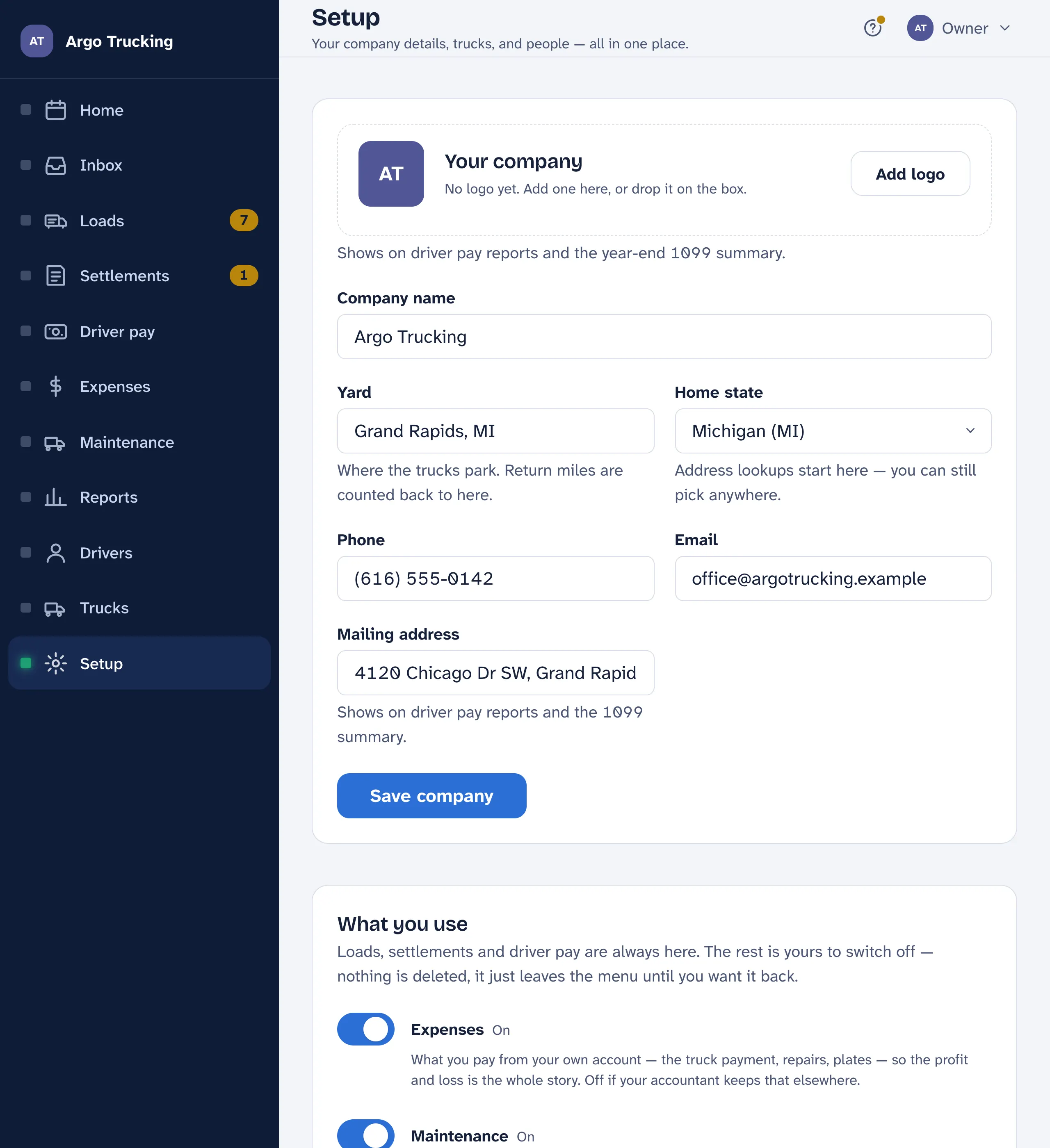
You don’t have to finish Setup before adding a load. A load will ask for anything it is missing, and a driver with no rate simply waits on the pay screen until you set one.
The first load
When dispatch sends a load, tap Add a load on This week or on Loads. Today’s date and the driver’s usual truck are already filled in. If you have the dispatch sheet — a photo of the text, or the emailed PDF — add it to the box at the top and the load number, the driver, the pickup and the drop fill themselves in. Look them over and save.
The pay for the load is figured at the bottom as you go: the loaded miles times the driver’s rate, then each live load and stop-off at its flat amount, then any waiting. The miles come from the map when you type the two places; if the carrier’s figure is different, type that instead and yours wins.
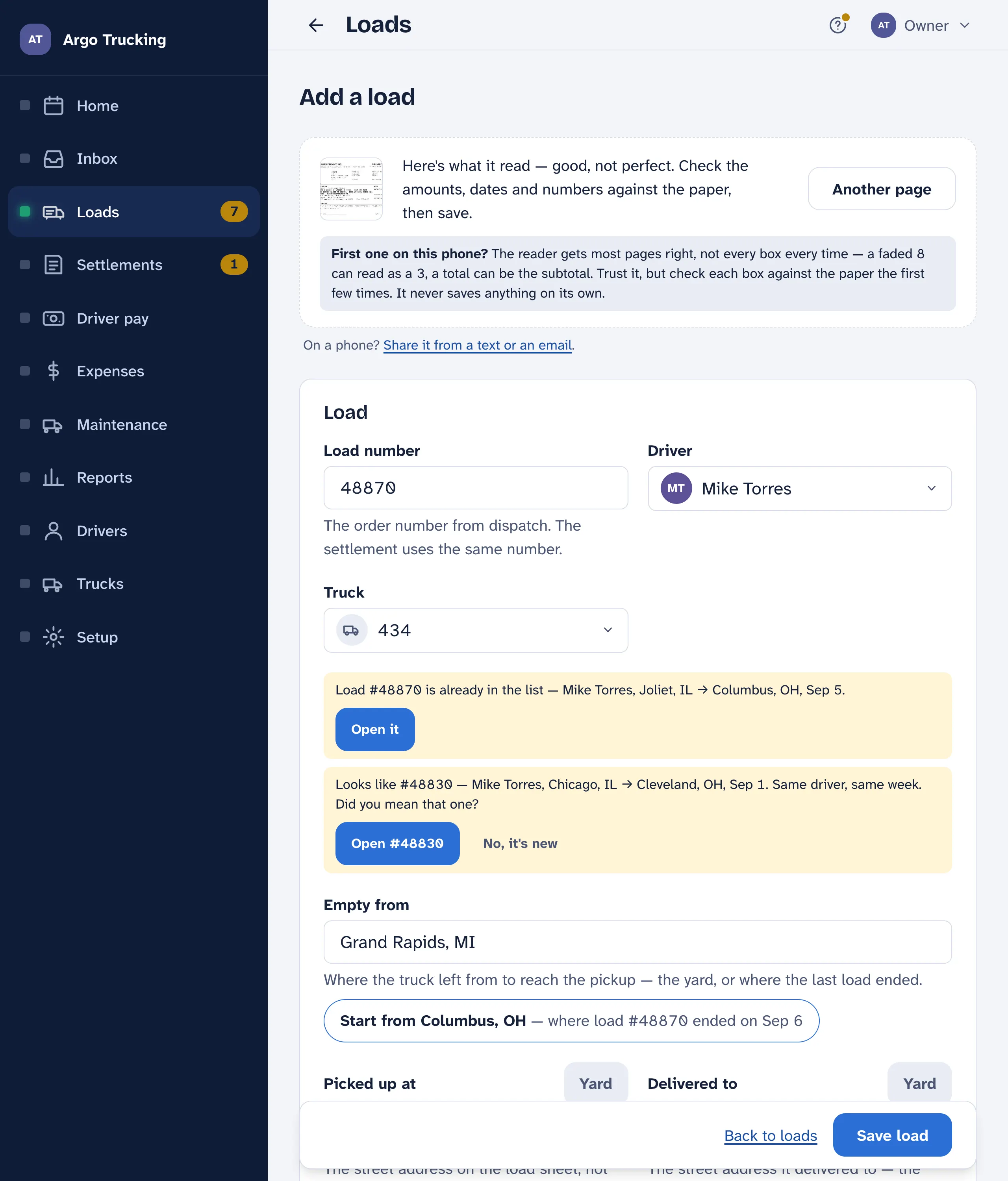
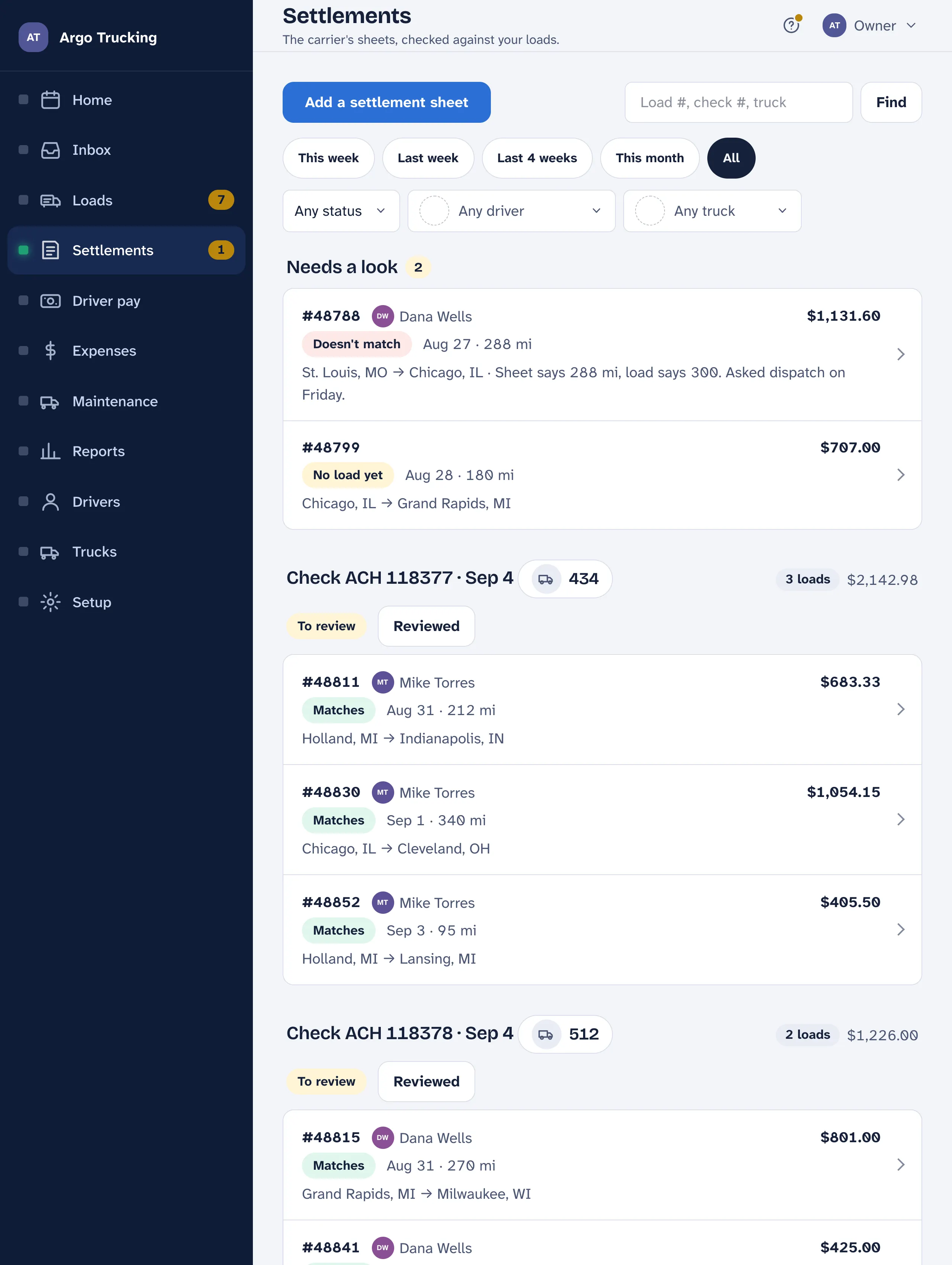
Once the driver has delivered, open the load and tap Delivered. That is what puts it on the driver’s pay. A driver with the app on their phone can do that themselves, and photograph the signed bill while they are at it. When the carrier’s settlement sheet names it, the load moves to Review on Loads, one sheet at a time — the count on Loads in the menu is what is waiting there.
Got the broker’s rate con? Add it to the load, or forward it. Its terms are read and the load gets a letter grade — a missing TONU, no reefer-fuel clause, detention that won’t cover the wait. See Rate con review.
The settlement
The carrier’s settlement sheet — one check, usually several loads — arrives by email on a Friday, or in the mail. Under Settlements, tap Add a settlement sheet and snap it or drop in the PDF. The check number, the date and the net pay fill in, and it reads each load off the sheet ready to add. Each settlement finds its load by number, and a word beside it says how it matched.
Or skip the typing altogether: forward the carrier’s email to your company’s paperwork address and the sheet files itself. Email it in shows how.
Payday
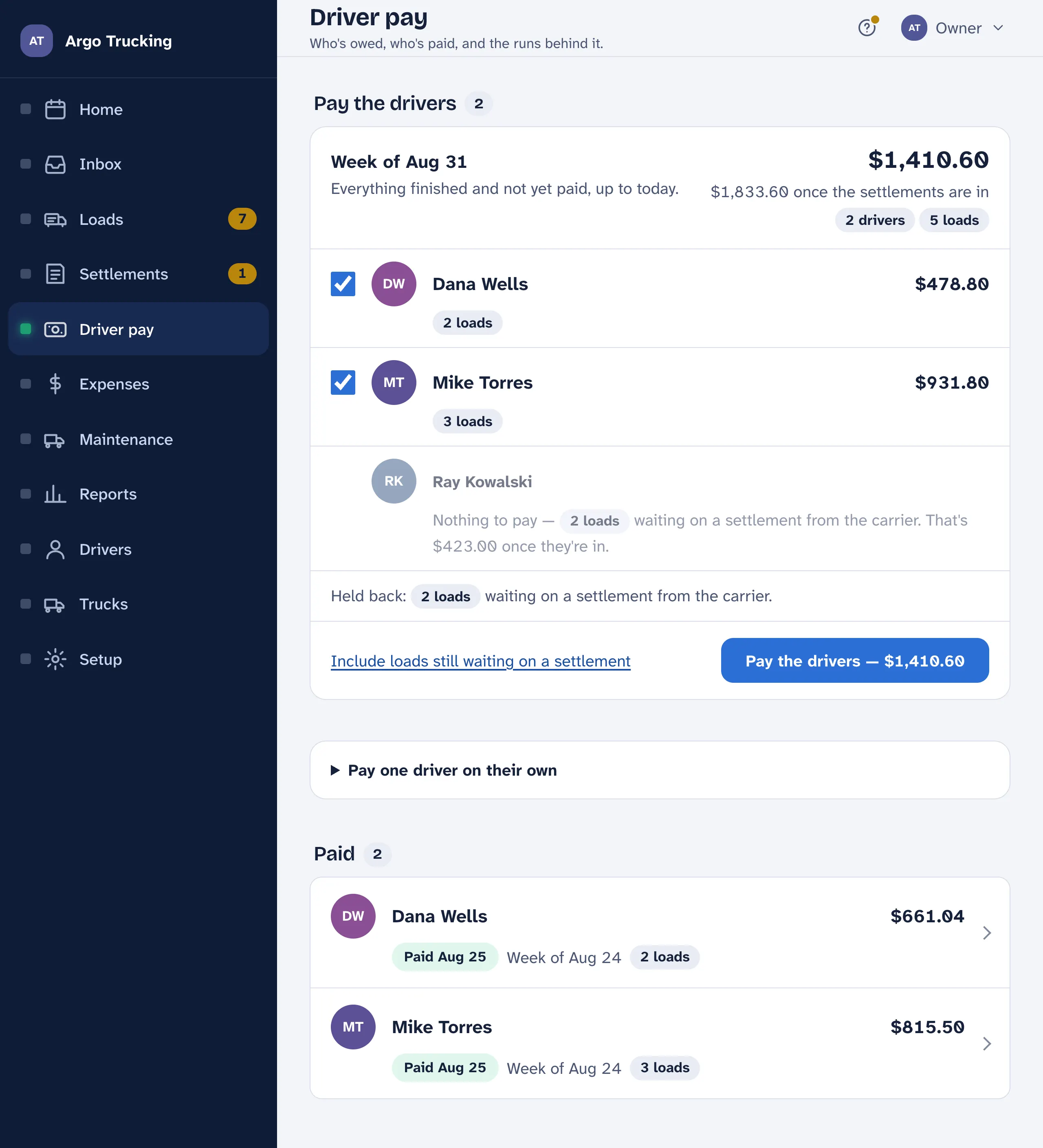
On Sunday, open Driver pay. Every load that is done and has its settlement in is added up for each driver, everyone is ticked, and one button starts a pay statement for each of them. Send the money through your bank the way you always have, then mark each statement paid. The driver’s copy is ready to print or send.
Who else signs in
Under Setup › People you add logins. A driver sees only their own loads and pay, from their phone. An accountant sees only the reports. Another owner sees everything you do. Each gets an email with a link, picks a password, and is in. Send them the guide to putting it on their phone too — one tap from the Home Screen beats finding a bookmark.
The app never moves money. Driver pay goes through your bank, the way it always has. LoadTally tells you what to pay, keeps the record, and hands the totals to whoever does your taxes.
Where to go next
- The week at a glance — the screen the app opens on, and the ? that explains every screen.
- Snap a photo and it types itself — how the reader works and how to feed it.
- Email it in — your company’s paperwork address.
- Payday — the whole pay screen, line by line.