
Put LoadTally on your phone’s Home Screen
iPhone and Android, with pictures: one tap opens it full screen, you stay signed in, and notifications reach you.
LoadTally is a website, but it works best as an app on your phone: one tap opens it full screen, you stay signed in, it can send you notifications, and a pull down from the top refreshes the screen. There is nothing to download from an app store. You put it on the Home Screen from the browser, once, in under a minute.
Sign in first. Open loadtally.app in the browser and sign in, so the icon opens straight onto your loads. A driver signs in from the email the office sent.
iPhone or iPad
Use Safari for this — the blue compass icon. Other browsers on an iPhone can’t add an app to the Home Screen.
- Tap the Share button at the bottom of the screen — the square with an arrow pointing up out of it. On an iPad it is at the top right.
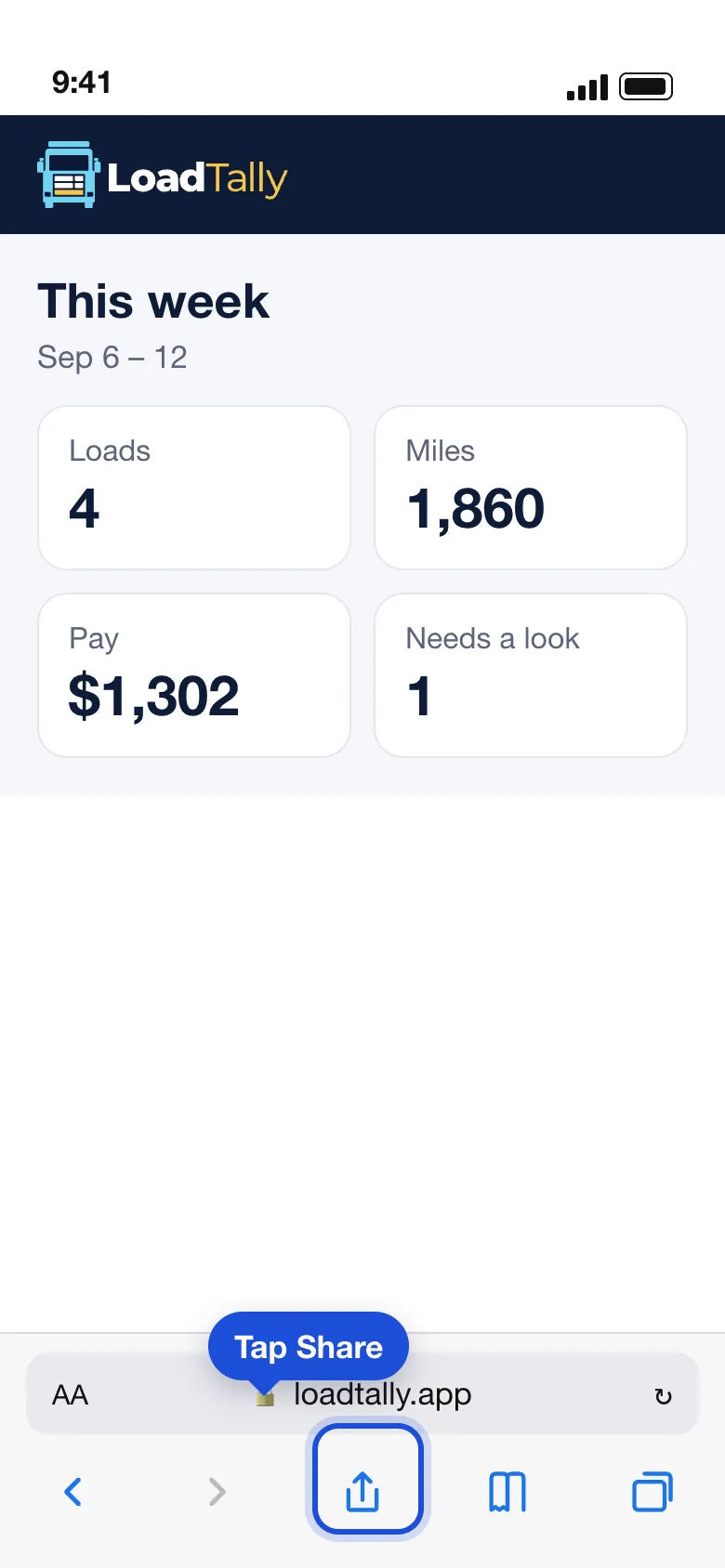
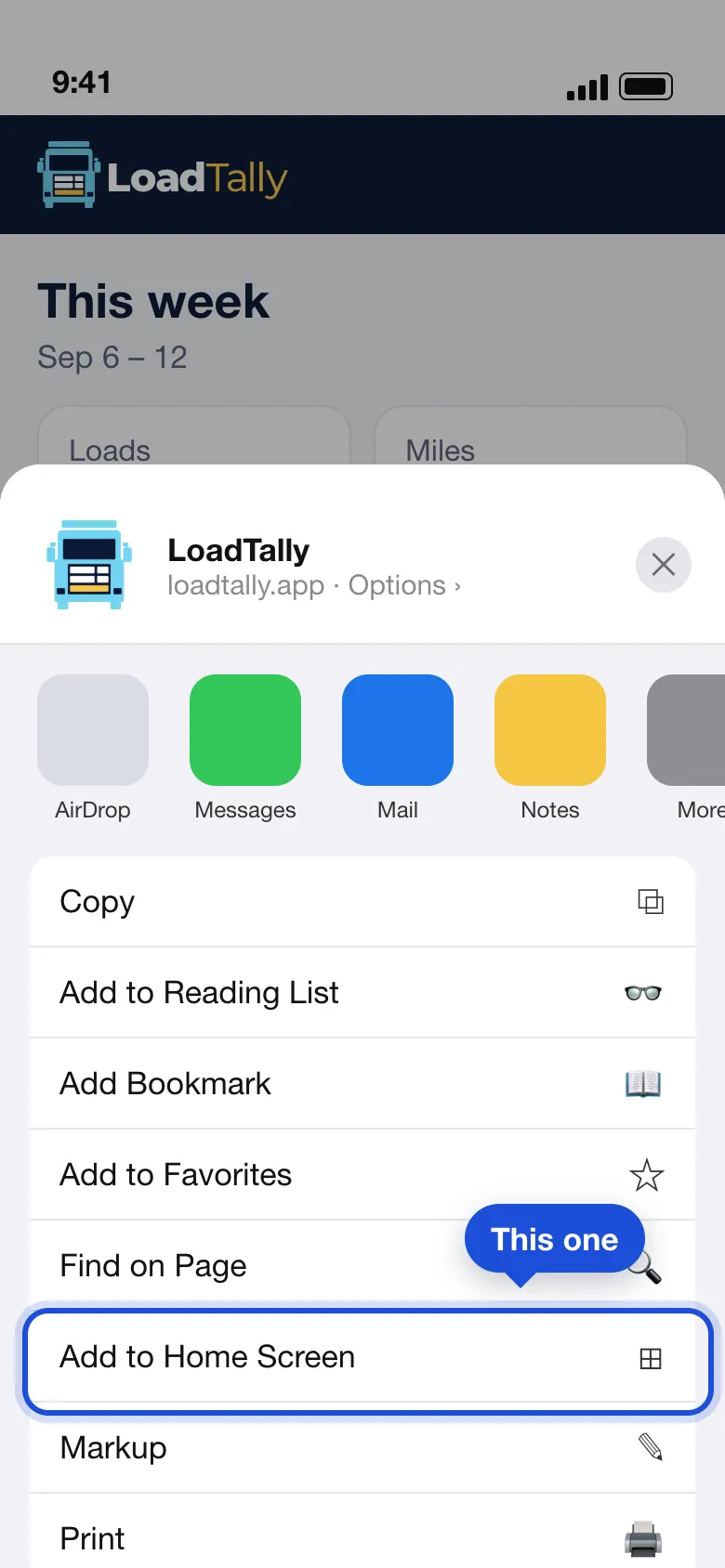
- Scroll the list down and tap Add to Home Screen. It is below Copy, Bookmark and Favorites, with a little square-and-plus beside it.
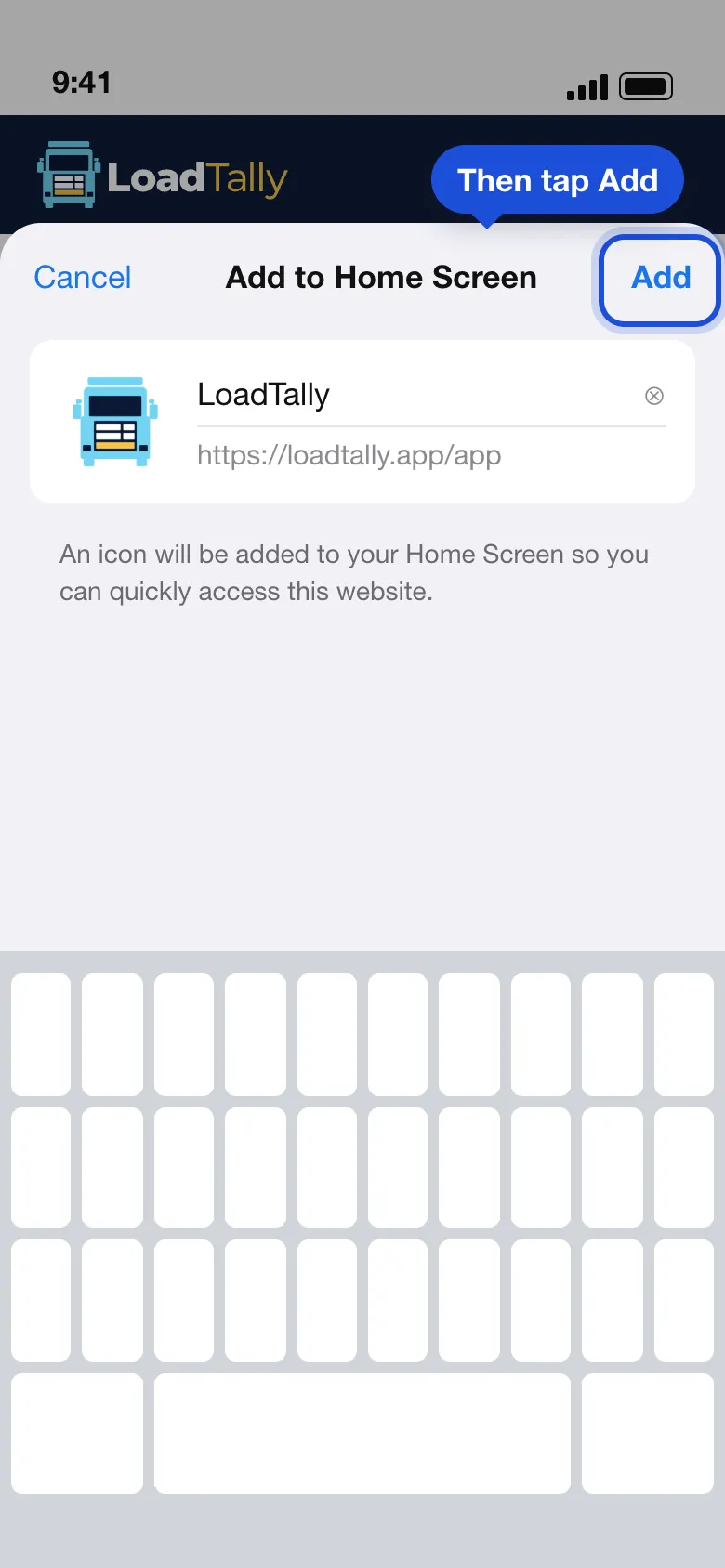
- Tap Add at the top right. Leave the name as LoadTally, or shorten it if you like.
Don’t see Add to Home Screen? You are probably in Chrome or another browser. Copy the address, open Safari, paste it, and start again from step 1.
Android
Use Chrome — the round red, yellow and green icon. Most Android phones open links in it already.
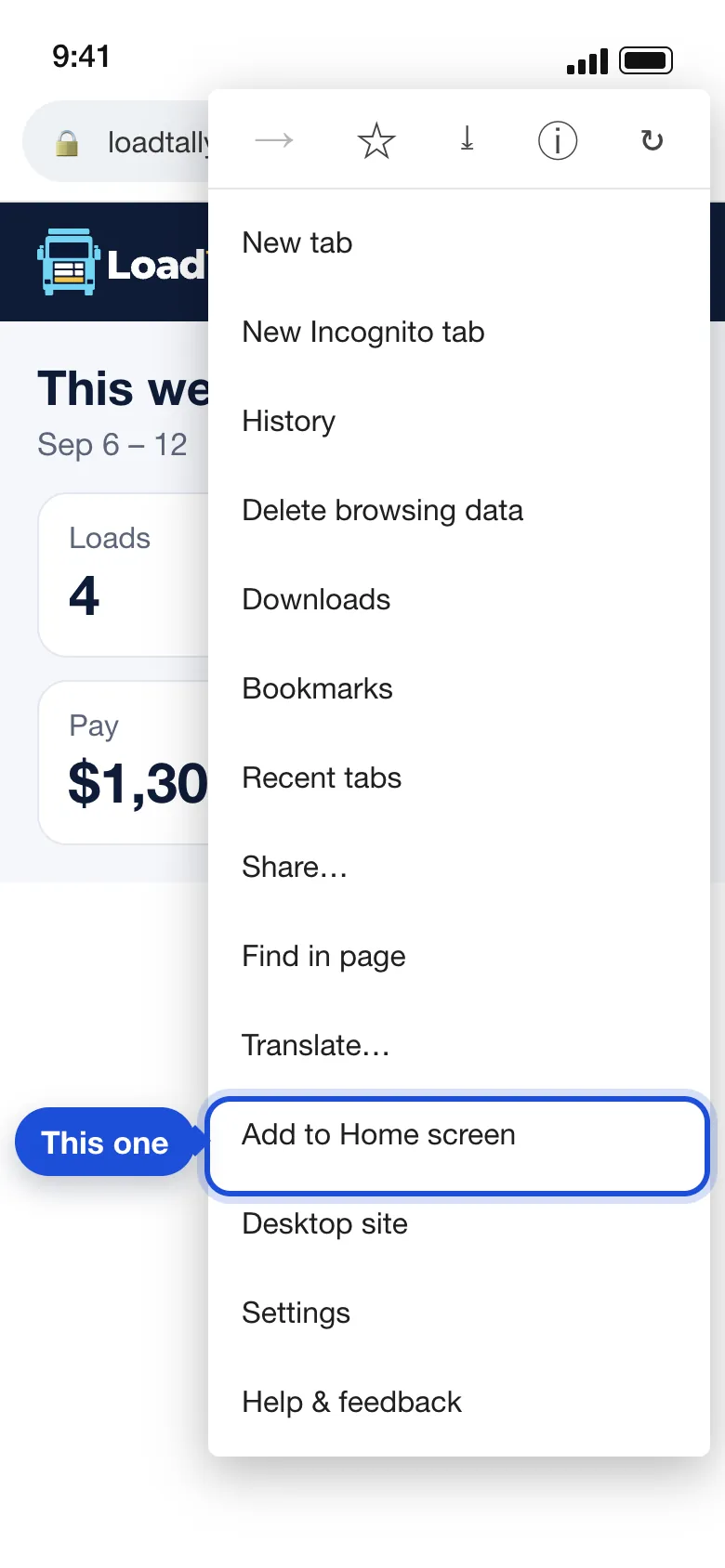
- Tap the three dots at the top right of Chrome, then Add to Home screen. On some phones it says Install app instead — same thing.
- Tap Install. A small card shows the LoadTally icon and name; confirm it. Some phones ask a second time whether to add the icon automatically — say yes.
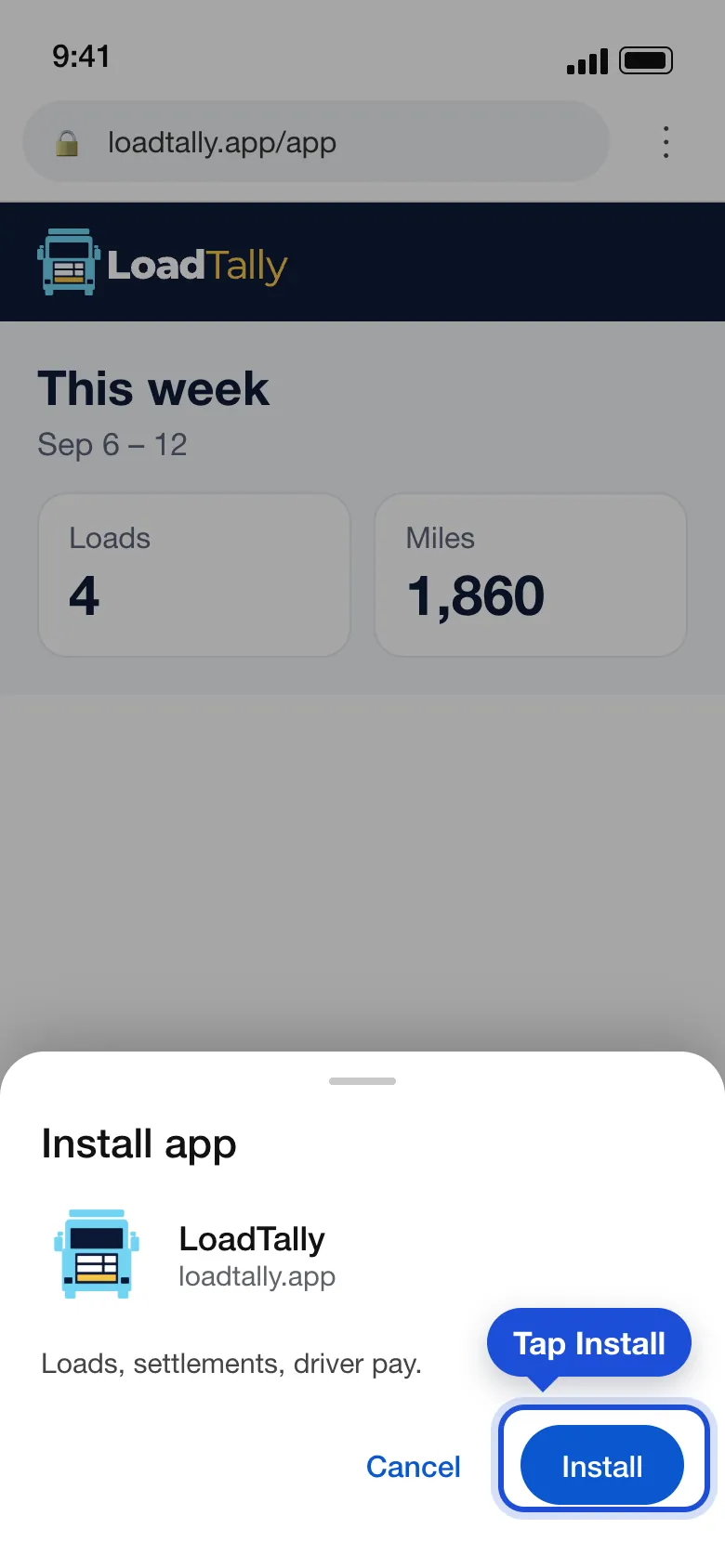
Samsung’s own browser works too: the three lines at the bottom right, then Add page to, then Home screen.
What you get
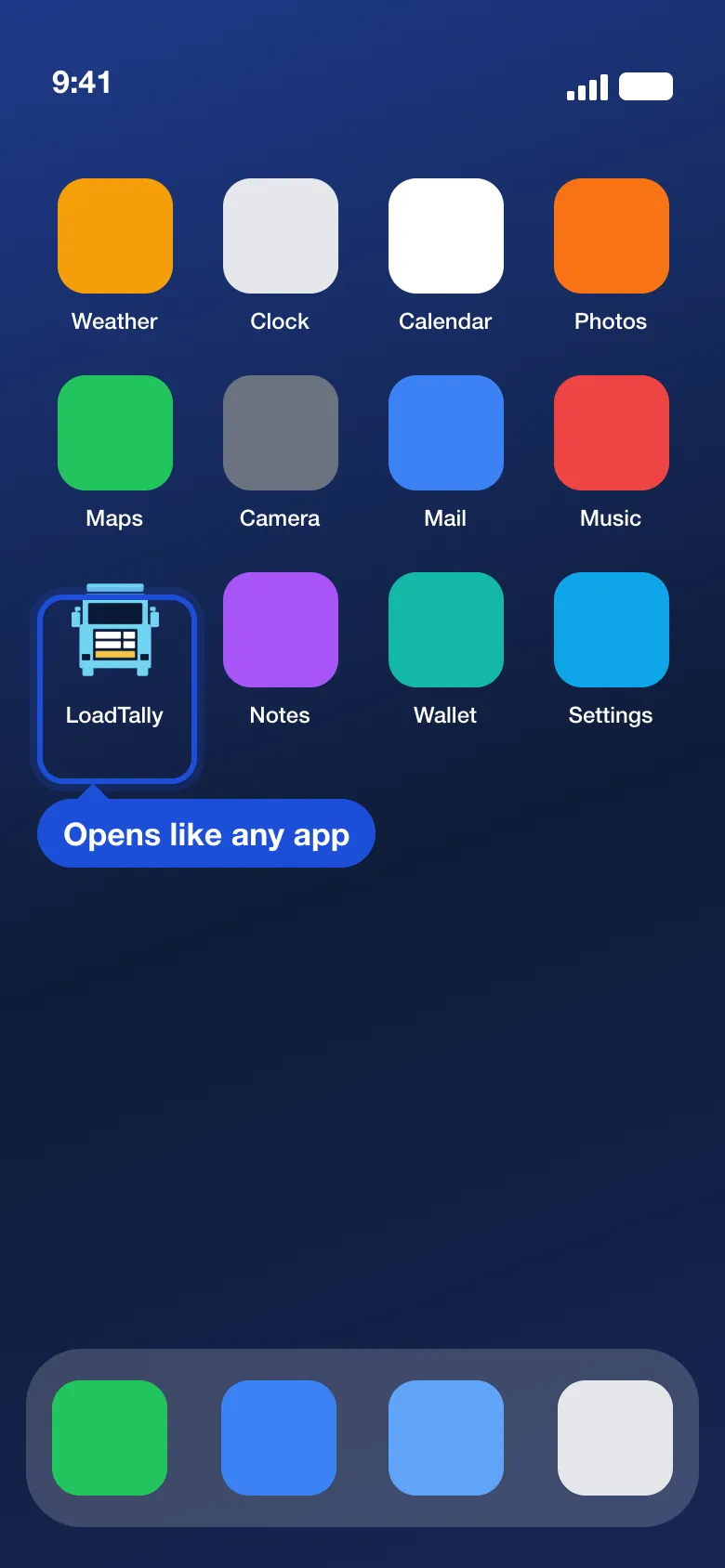
- Full screen. No address bar, no browser buttons — just the app.
- Still signed in. The phone remembers you. A new phone needs the password once; Forgot your password? on the sign-in screen emails a link.
- Notifications. On an iPhone they only work from the Home Screen icon, never from a Safari tab. Turn them on under Your account › Notifications once the icon is on the phone.
- Pull down to refresh. There is no reload button in an app, so pulling down from the top of any screen fetches the latest.
Taking it off is the same as any app: press and hold the icon, then Remove or Uninstall. Nothing is lost — your books live in LoadTally, not on the phone.