
Snap a photo and it types itself
What the reader reads, how to take a photo that reads well, and how to get a texted or emailed page into the app.
Most of what goes into LoadTally starts as a piece of paper, or a photo of one. Every form that takes a document has the same box at the top: Add a photo or PDF. Put the page in, and the boxes below fill themselves in for you to check. Nothing is saved until you press Save.
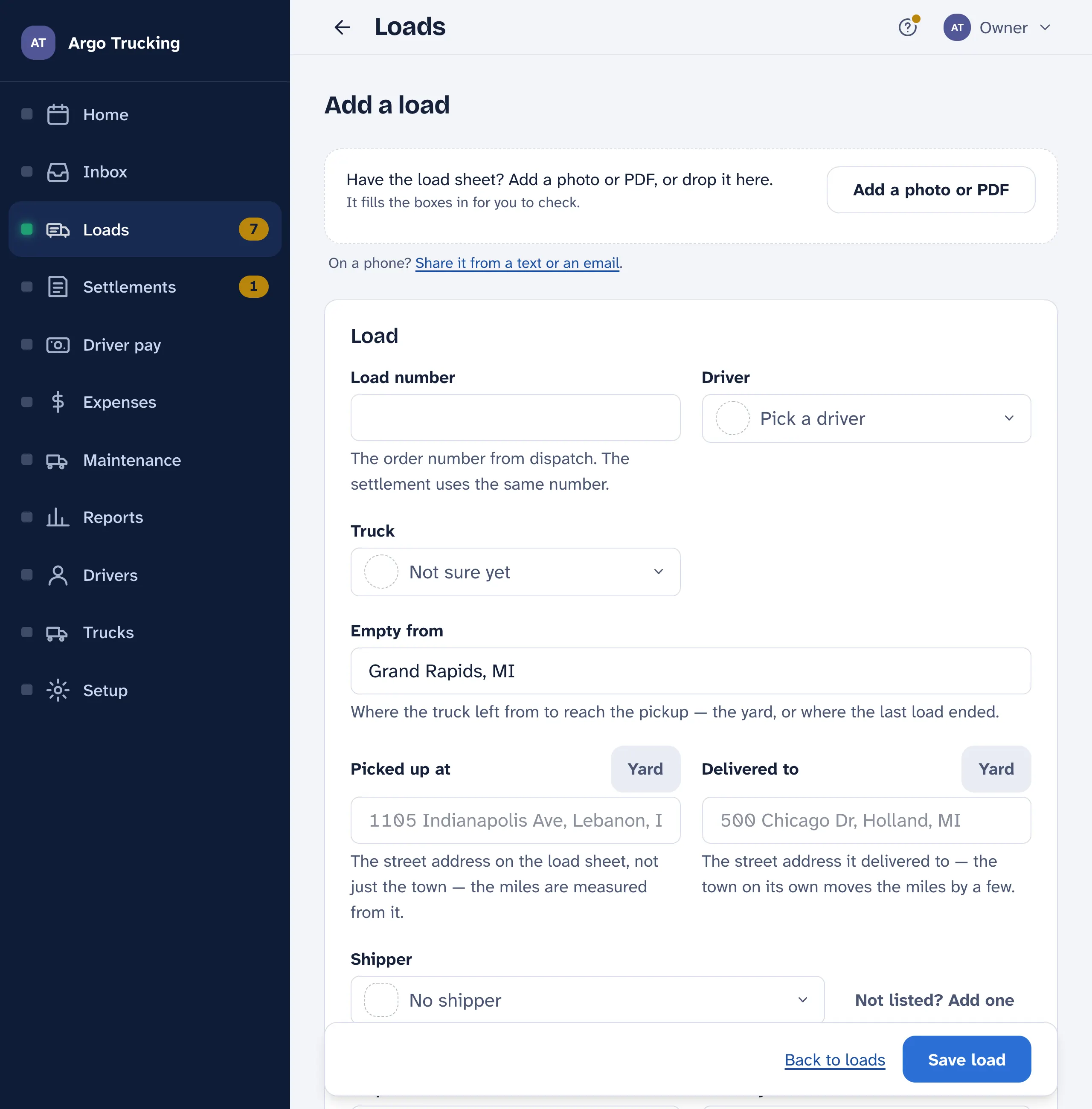
What it reads
| The page | Where the box is | What fills in |
|---|---|---|
| Dispatch sheet — the delivery receipt, rate confirmation, or a photo of the text from dispatch | Add a load | Load number, driver, truck, pickup, drop, shipper, dates, miles |
| Settlement sheet — the carrier’s summary, one check with its loads | Add a settlement sheet | Check number and date, the net pay, and every load on it, each ready to add |
| Fuel slip or receipt — from the island, the toll booth, the wash | Receipts on the load | The lines: diesel, DEF, reefer fuel, each with gallons and amount; the day, the vendor, the transaction number |
| Shop invoice | Log a service | The shop, the day, what was done, the miles, the amount |
| A bill you paid — tires, plates, the accountant | Add an expense | The amount, the day, who was paid |
After it reads, a green box says what it found. Look at the boxes underneath against the paper, fix anything it misread, and save. The page itself is kept with the load, the sheet, or the receipt, so you can always look back at the original.
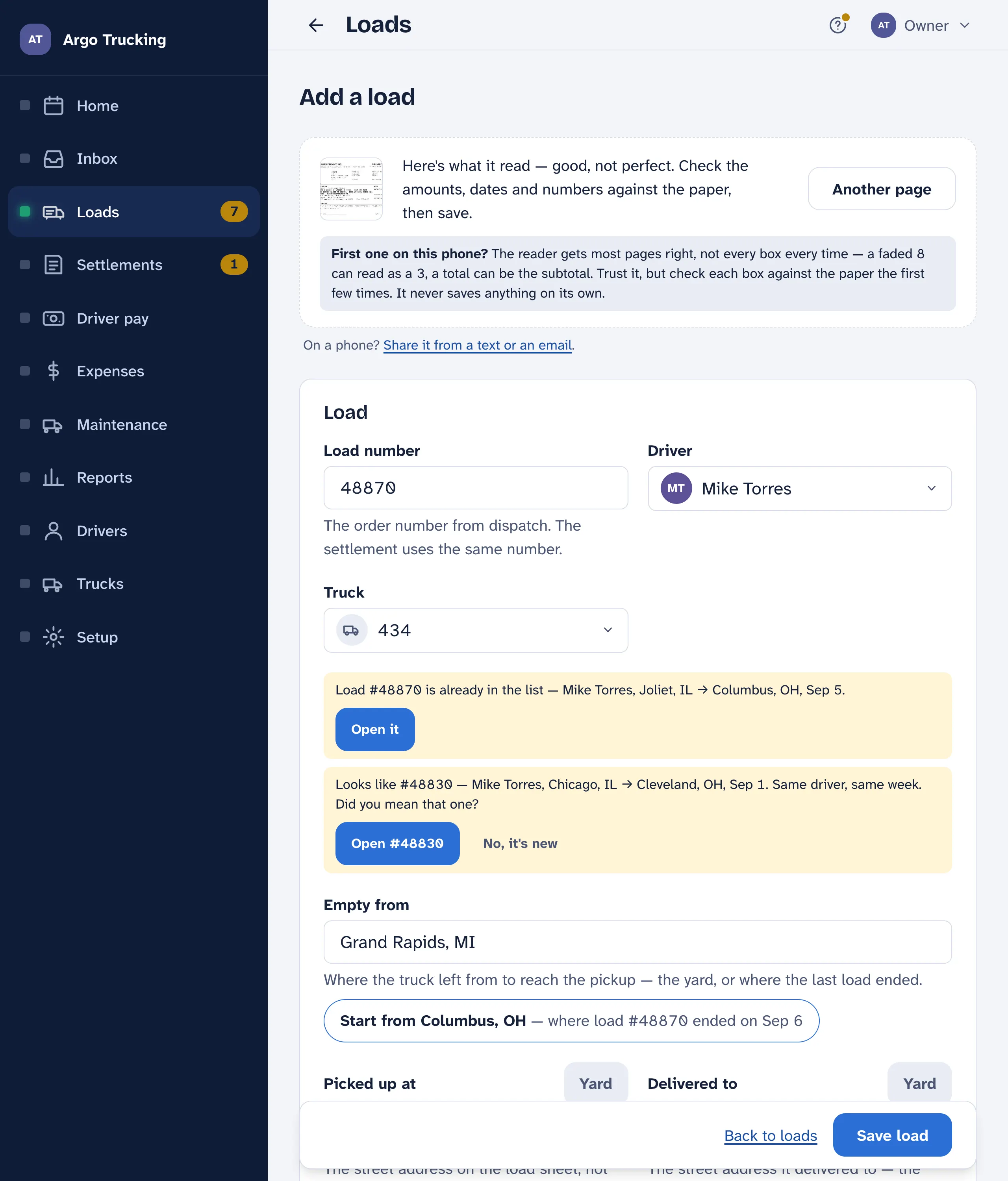
How well it reads
It is good, not perfect. A flat, well-lit photo of a whole page reads almost every time; the carrier’s emailed PDF reads best of all. A blurry shot in a dark truck stop gives back what it can and leaves the rest blank — it never guesses a number. A faded fuel slip can fool it on a digit, so check the total and the date before you save. It never saves anything on its own.
- Another page. A load with two pages — the sheet and the signed bill — takes them one after the other. Each is kept.
- Read it again. If it read nothing, retake the photo. The second try usually lands.
- Two slips in one photo is fine. Each gets its own line.
- A fuel-island slip comes in split — diesel, DEF and reefer as their own lines with their gallons, because the settlement takes them off separately. If your carrier pays the reefer fuel itself, Setup › Trucks › Fuel can leave that line off every slip.
Checking it against the page
Reading a page is one thing; knowing it read it right is another. Open a load or a settlement sheet that came off a picture and there is a button, Check it against the page — at the top of a load beside Reviewed, and by the pages on a settlement sheet. It puts the page on one side and one value on the other, and moves the picture to the spot that value was read from, with a dashed line round it — so you are never hunting the sheet for the number you are being asked about.
- Right and it goes on to the next one by itself. A load is checked in about twenty seconds.
- Fix it, type what the paper really says, and save. That puts it right on the load itself — the same as typing it there — and tells the reader what it got wrong. It then offers what went wrong?, which is a tap or a skip, never something you have to fill in.
- ‹ and › at the top of the card — or a swipe across it, or the arrow keys — walk back and forward through the fields without answering any of them, so you can look through the whole load before you say a word about it.
- The dashed line means about here, not exactly there. Drag the page about, pinch it, or tap Whole page.
- Some things were never on the paper — miles that came off the map, the truck the tractor number matched — and those say so instead of pointing at nothing.
- Stop halfway and what you answered is kept. At the end it marks the record reviewed, so it comes off the to-check list.
The first time you open a page this way it takes a few seconds to work out where everything sits, and says so while it does; after that it is instant. If you would rather check by eye, Setup › Company › Checking what was read turns it off, and pages file a little faster without it.
From a text or an email, on a phone
Dispatch texts a photo; the carrier emails a PDF. On a phone, the app can’t reach into Messages or Mail, so it is two steps: save it, then pick it. The same steps are folded under every box, for whichever phone you are holding.
iPhone
- A photo in a text: press and hold it, tap Save (or Share, then Save Image). Back in the app, Add a photo or PDF, then Photo Library.
- A PDF in an email: open it, tap Share, then Save to Files. Back in the app, Add a photo or PDF, then Choose File.
- Paper in your hand: Add a photo or PDF, then Take Photo.
Android
- A photo in a text: tap it, then the save or download arrow. Back in the app, Add a photo or PDF and pick it from Photos or the Downloads folder.
- A PDF in an email: tap the attachment’s download arrow. Back in the app, Add a photo or PDF, then Files › Downloads.
- Paper in your hand: Add a photo or PDF, then Camera.
Skip the save-then-pick dance altogether: forward the text or the email to your company’s paperwork address and it files itself. See Email it in.
Taking a photo that reads
- Lay the page flat, on the seat or the hood. A page held in the air curls.
- Get all four corners in. Cropped edges lose the total at the bottom.
- No shadow across the numbers. Step back from the window, or turn the page.
- A long receipt: one photo of the whole thing beats two halves.
- The carrier’s PDF, straight from the email, beats any photo of the printout.
The reader costs you nothing extra. It is part of the price. Read as many pages as you like.