
Loads
Adding one, finding one, the load page itself: status, the settlement, the paperwork, empty miles, cancelling.
A load is one run for the carrier: a number, a driver, a truck, a pickup and a drop, the dates, and the miles. Everything else hangs off it — the settlement that pays you for it, the paperwork, the receipts, and the driver’s pay line by line. Loads is every load on the book.
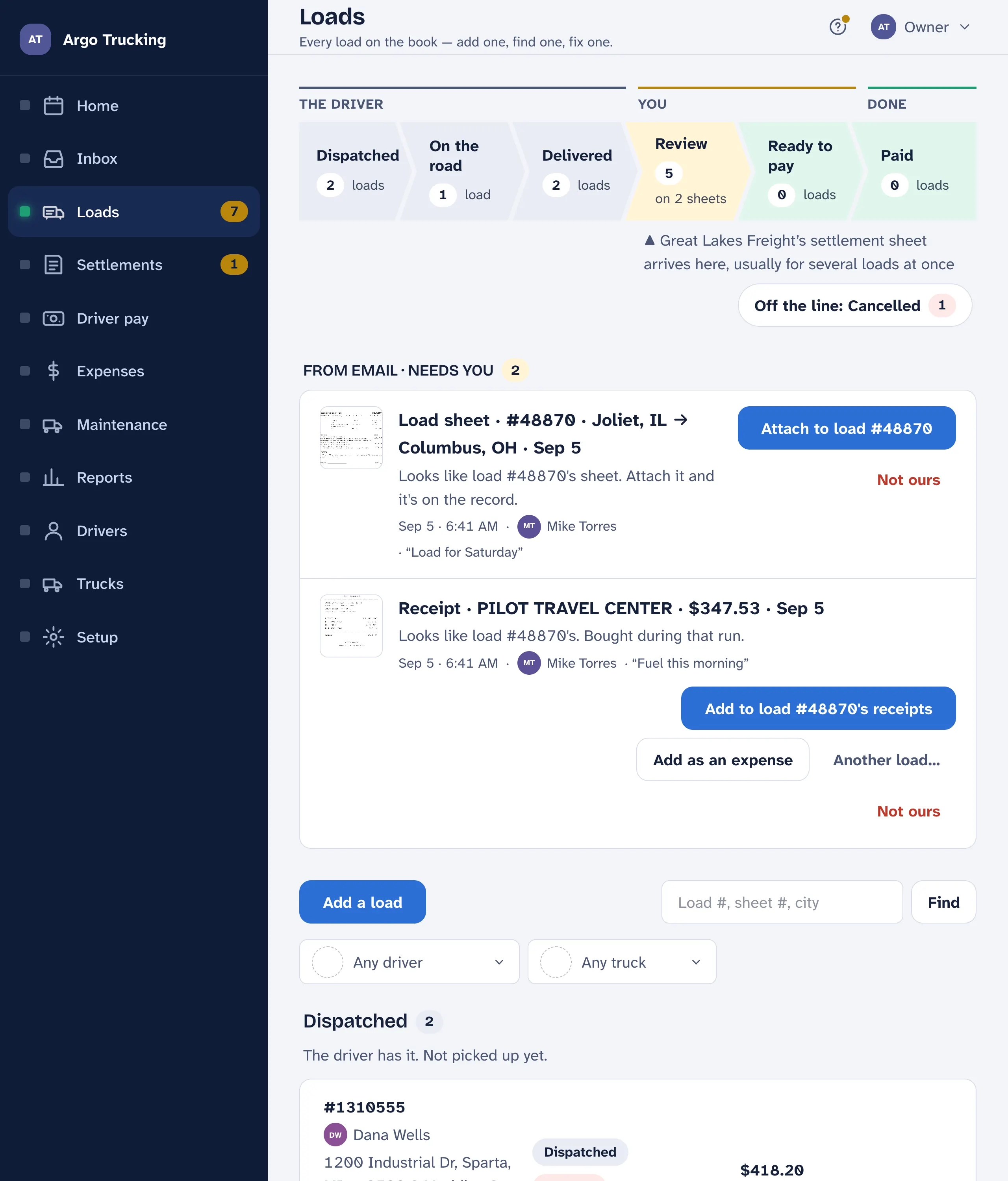
From email · needs you
Paperwork emailed to your address files itself. What it can’t place — a receipt for a load not entered yet, a page it couldn’t read, dispatch’s word that a load was cancelled or swapped — waits at the top of Loads with the one tap that files it: Attach to load #48870, Add to load #48870’s receipts, Another load…, Not ours. See the Inbox for the record of everything that came in.
The six steps
- Dispatched, On the road, Delivered are the driver’s. A load moves along as the driver taps I picked it up and Delivered on their phone, or as you set it on the load.
- Review is yours, one settlement sheet at a time. When the carrier’s sheet comes in and names a delivered load, the load moves here on its own. Each sheet shows what it paid and whether every load on it matches; Review the sheet sends the matching ones on. One that doesn’t match stays, with a note saying why, until it’s sorted.
- Ready to pay is one row per driver: their reviewed loads and what they come to. Start pay run goes to Driver pay.
- Paid is every load on a pay run that has gone out. Cancelled sits off the line, each one saying what replaced it.
Tap a step to see only its loads; tap it again, or Show every step, for all of them. On a phone the steps run top to bottom, and a step opens its own list. The count on Loads in the menu is the Review pile, plus any emailed page waiting on a tap.
Each row carries the load’s Grade once a rate con or a settlement is in — see Rate con review — and the lane it runs on, if it has one.
Finding one
- Find. Type a load number, a sheet number, a shipper, or a city and tap Find. Every step narrows to what matches.
- Whose. A driver, a truck, a carrier. Clear filters shows everything again.
- Which stretch of time. Paid has its own choice — this week, last week, the last four, this month, or all of it. The other steps always show every load on them.
Pick a driver in the filter first and Add a load starts with that driver already chosen.
Adding one
Tap Add a load. Today’s date and the driver’s usual truck are already filled in. Add a photo or the PDF of the dispatch sheet and the rest fills itself — see Snap a photo — or type it:
- Load number — the carrier’s order number. It is how the settlement finds its way back to this load, so type it as printed.
- Driver and truck. A truck number that isn’t on your list counts as a rental if Setup says so.
- Lane. When the pickup and the drop are a run you make again and again, the Lane box picks it, and both places and the lane’s miles fill in. Not on a lane takes the load off it. See Lanes below.
- Empty from, picked up at, delivered to. The places. Empty from starts at the yard, or where the driver’s last load ended — the form offers that: Start from Columbus, OH — where load #48870 ended. Tapping it links the two loads, and the miles home come off the earlier one: the truck never went home.
- Shipper — who the freight is for. Pick from the list or add one on the spot. Untick Track shippers in Setup and loads stop asking.
- Dates. The pickup date is the one the load is grouped and paid under.
- Miles. Three legs: empty to the pickup, loaded to the drop, and back to the yard. The map figures all three from the places; type over any of them and yours wins. The carrier pays on calculated miles, never the odometer.
- Pay the empty miles. Tick it and the empty legs pay at the same rate as the loaded ones. Setup holds the default for new loads.
- Live loads, stop-offs, detention. Counts and hours. The amounts come from the driver’s rates; Change the amounts for this load overrides them here only.
The driver’s pay for the load refigures at the bottom as you type. Save, and the load is in Dispatched.
The load page
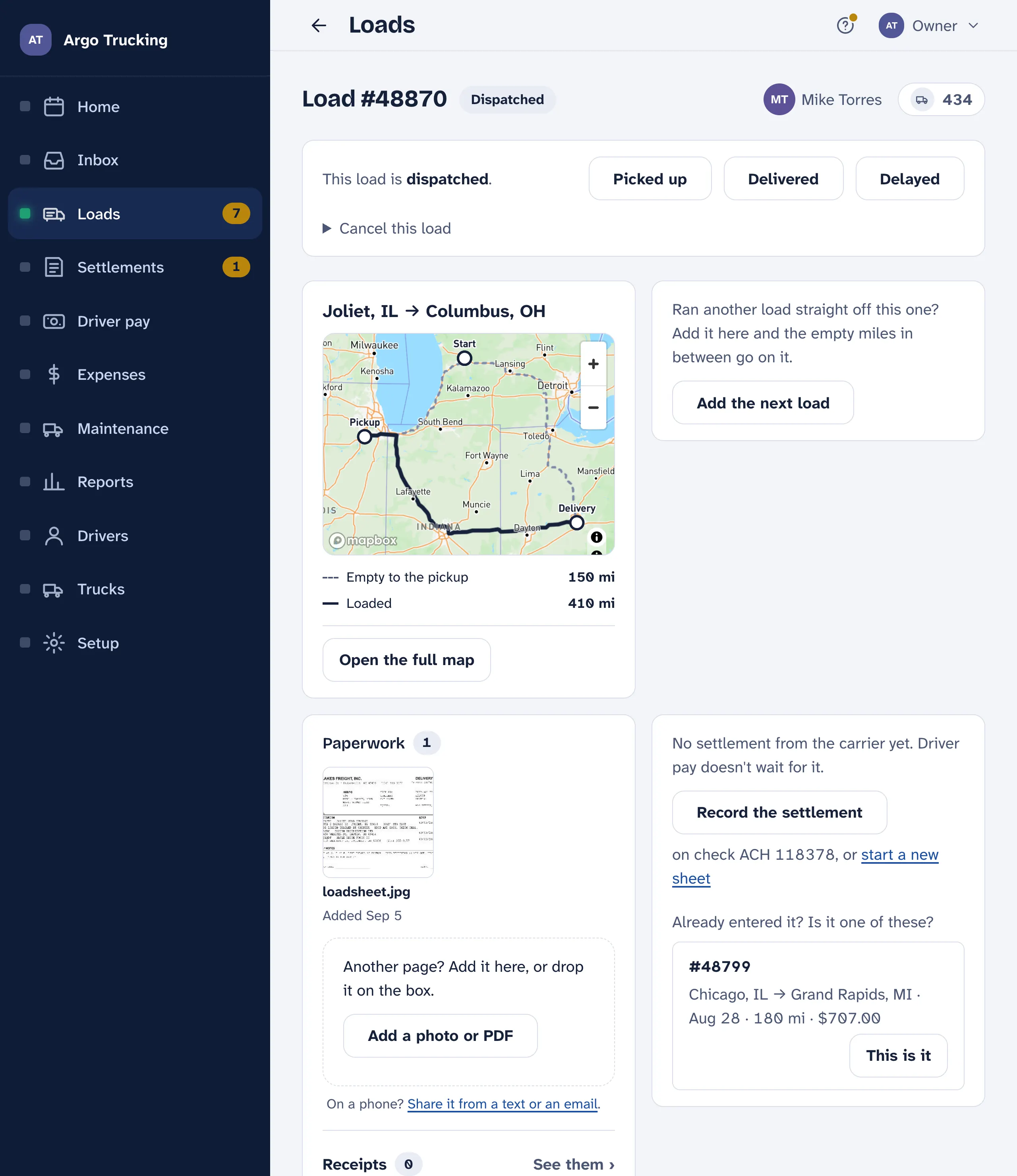
- Where it is. Picked up when the driver has it loaded, Delivered once the receiver has signed the bill, Delayed if it slipped, Not delivered yet if you were early. Cancel this load keeps the load and your note on why.
- The grade. Once a rate con or the settlement is in, a Grade pill sits beside the status; tap it for the review — what the terms say, and how the load stands against that week’s diesel and a fair rate. See Rate con review.
- Reviewed. Done a sheet at a time from Review on Loads, once. A load filed from an emailed page says whether its scan has been checked, and once it has, how many fields it read right — Check the scan walks it field by field.
- The map. The run drawn from the towns on the load, with the empty leg from the yard first. If it looks wrong, a town is.
- The carrier’s settlement. What the carrier pays you for this load, once it is in, and whether it matches. Driver pay doesn’t wait for it. Record the settlement puts it on a sheet; if a likely one is already entered, This is it ties it on.
- The paperwork. The dispatch sheet, the signed bill, the envelope — every page photographed for this load. Each says who added it, when, and whether it came by email.
- Receipts. What the driver spent on this run, waiting for your answer. See Receipts on the load.
- The details. Everything from the form. Change anything and save; the pay refigures.
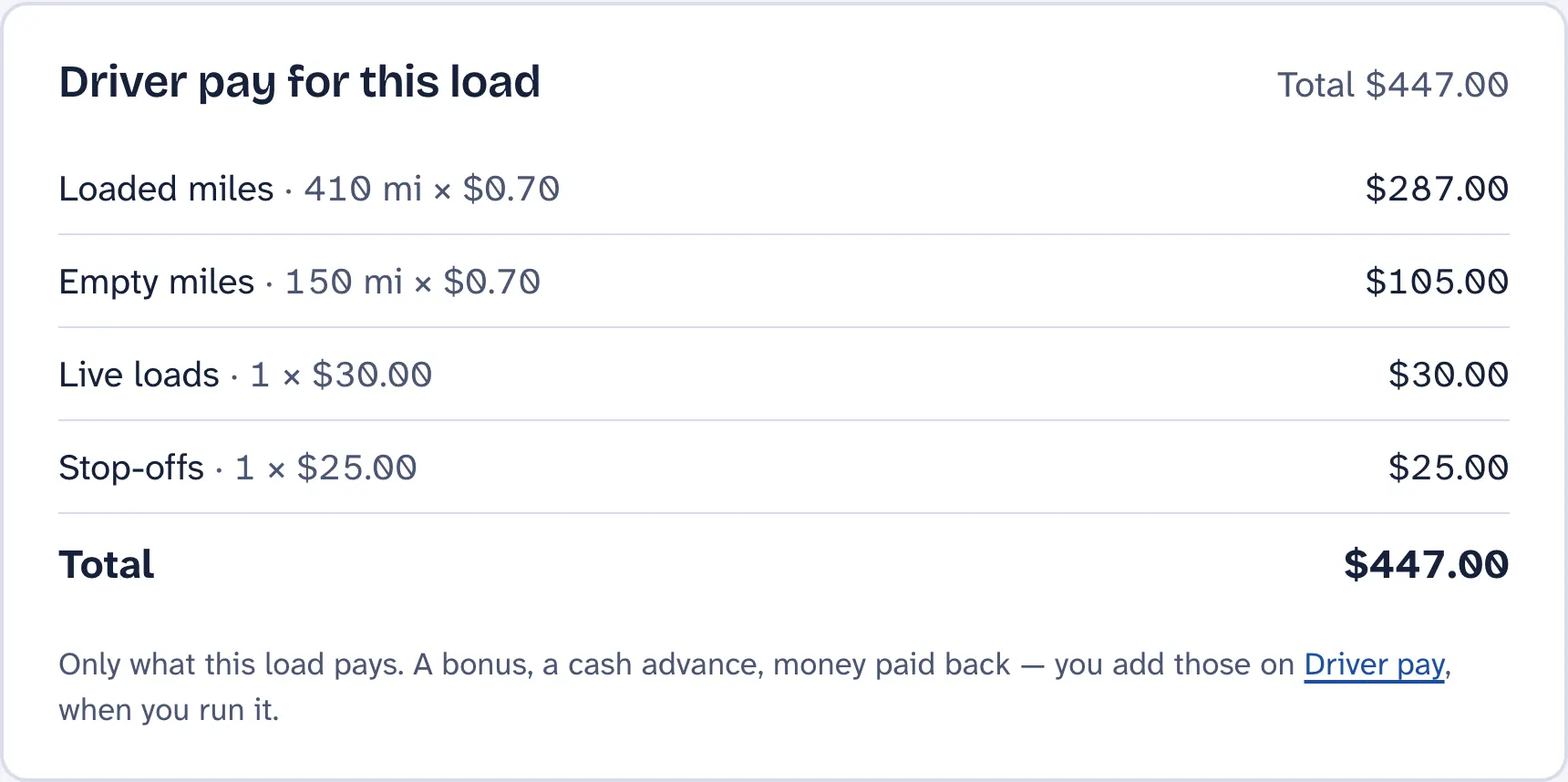
- The math. Driver pay for this load, line by line.
Empty miles between loads
A trip is usually several loads, not one run out and back: out of the yard empty, load, deliver, run empty to the next pickup, and so on until the trip home. The carrier pays none of the empty miles; many owners do. Every load has its empty leg to the pickup and its return leg to the yard, and one tick, Pay the empty miles, covers both. Link the loads and the app knows the run: tap Start from when you add one, or Add the next load on the one before it, and the earlier load’s miles back to the yard come off — the truck never went home — while the new load’s empty leg starts where that one delivered. Each linked load then shows the whole trip on its page: the loads in order, the empty miles between them, the miles home at the end, and the totals. Unlink from trip undoes it and puts the miles home back. A load already on a pay statement keeps its figures.
An empty move — a bobtail to the shop, a run the carrier never sees — is a load with a name instead of a number. It pays its miles and never waits on a settlement.
Another driver went and got the load? Open the + before it and tap Another driver fetched it. They are paid for the run; the trip starts fresh at the yard.
Lanes
The map answers a mile or five differently every time, so a run you make every week can go in at 253 miles one week and 255 the next. A lane holds the two places and the one number for the run between them, under Setup › Lanes. Any leg between them takes the lane’s miles, either way round — loaded, empty to the pickup, or home to the yard — and never asks the map. A load on a lane keeps its miles when the carrier’s sheet disagrees, and the settlement shows the difference.
Each end can carry its name (“Sara Lee”), and a usual driver and shipper are offered while those boxes are blank. Runs made twice or more are offered as lanes at the miles most of their loads went in with; tick Learn lanes on their own in Setup and the second load of a run makes the lane for you. Each lane has its own page: the run on the map and every load that ran it, with the ones that went in at different miles in amber.
Cancelled, or removed
A load that didn’t happen is cancelled, not removed: it moves to Cancelled, struck through, with your note, and doesn’t count. Whether the driver gets anything for it is your call — a line can be added on their statement. Remove is for a load entered by mistake; it asks first, and the load is gone for good.
Two numbers, not one. The settlement is what the carrier paid you. The driver’s pay is what you pay them. They come from the same load and sit side by side on it, but one is not a share of the other. See How driver pay is figured.