
LoadTally on the driver’s phone
Putting it on the Home Screen, adding a load with the camera, marking it delivered, turning in receipts, and seeing your pay.
If the office has given you a login, LoadTally on your phone shows your loads, your pay, and nobody else’s. The camera does most of the work: snap the dispatch sheet and the load types itself, snap the signed bill, snap the fuel slip. Two minutes a load, and your pay is figured before the week is out.
Getting in
- Open the email from the office and tap the link. Pick a password. You are in.
- Put it on your Home Screen. On an iPhone, in Safari, tap the share button and Add to Home Screen. On Android, in Chrome, the three dots and Add to Home screen or Install. It gets an icon like any app, and notifications can reach you. Pictures of every tap: Put LoadTally on your phone’s Home Screen.
- You stay signed in. The phone remembers you, so the icon opens straight onto your loads. Forgot the password on a new phone? Forgot your password? on the sign-in screen emails you a link.
On an iPhone, notifications only work from the Home Screen icon, not from a Safari tab. If the office’s messages aren’t reaching you, that is usually why.
My loads
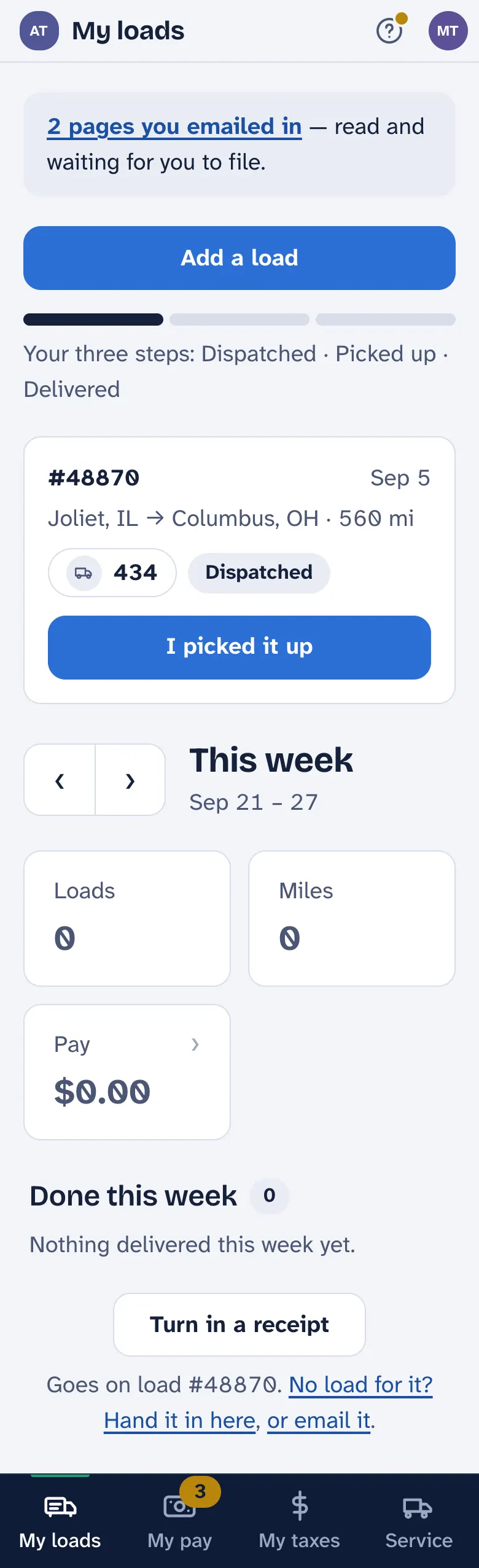
- Which week. The arrows step back a week and forward again; Back to this week brings you home.
- Your week in three numbers. Loads, miles, and pay — miles times your rate, plus any live loads and stop-offs.
- Your loads. Tap one to see the stops, mark it delivered, or add the bill.
- Add a load. When dispatch sends you one. Today’s date and your usual truck are already filled in.
- Turn in a receipt. Paid for fuel, a toll, a wash on this run? This takes you to the load’s receipts box.
Adding a load
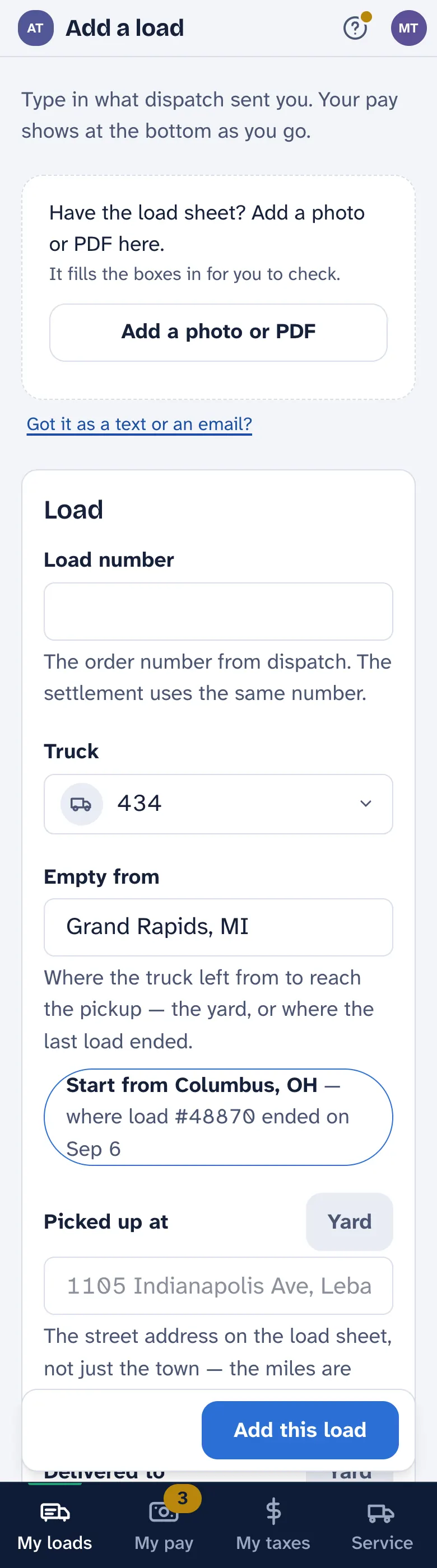
Dispatch texted a photo? Press and hold it, Save, then in the app Add a photo or PDF and pick it from your photos. The load number, where from, where to and the dates fill in. Check them against the paper, then save. Your pay for the load is figured at the bottom as you go — the rates are the office’s to set.
Quicker still: press and hold the photo, Share, Mail, and send it to the company’s paperwork address — ask the office for it and save it as a contact. The load makes itself, and it is yours.
On the load

- Where you’re at. Dispatched until you pick it up, Picked up until you have delivered. Running late? Mark delayed tells the office without a phone call. Once the receiver signs, Mark completed — that is what puts the load on your pay. Marked it delivered by mistake? Not delivered yet.
- The paperwork. Photograph the signed bill, the delivery receipt, the envelope — whatever is in the folder. The office matches them against the carrier’s settlement so your miles and stop-offs are paid right.
- Your receipts. Paid for something on this run — reefer fuel, a toll, a wash? Snap the slip and turn it in. What you paid for yourself comes back on your next pay once the office okays it. A slip on the carrier’s fuel card is just for the record. Two slips in one photo is fine.
- The details. Fix the miles, add a stop-off, note the trailer. It saves when you tap Save changes.
- Your pay for this load. Line by line: your miles × your rate, a flat amount for each live load and stop-off, detention by the hour, then the total.
My pay
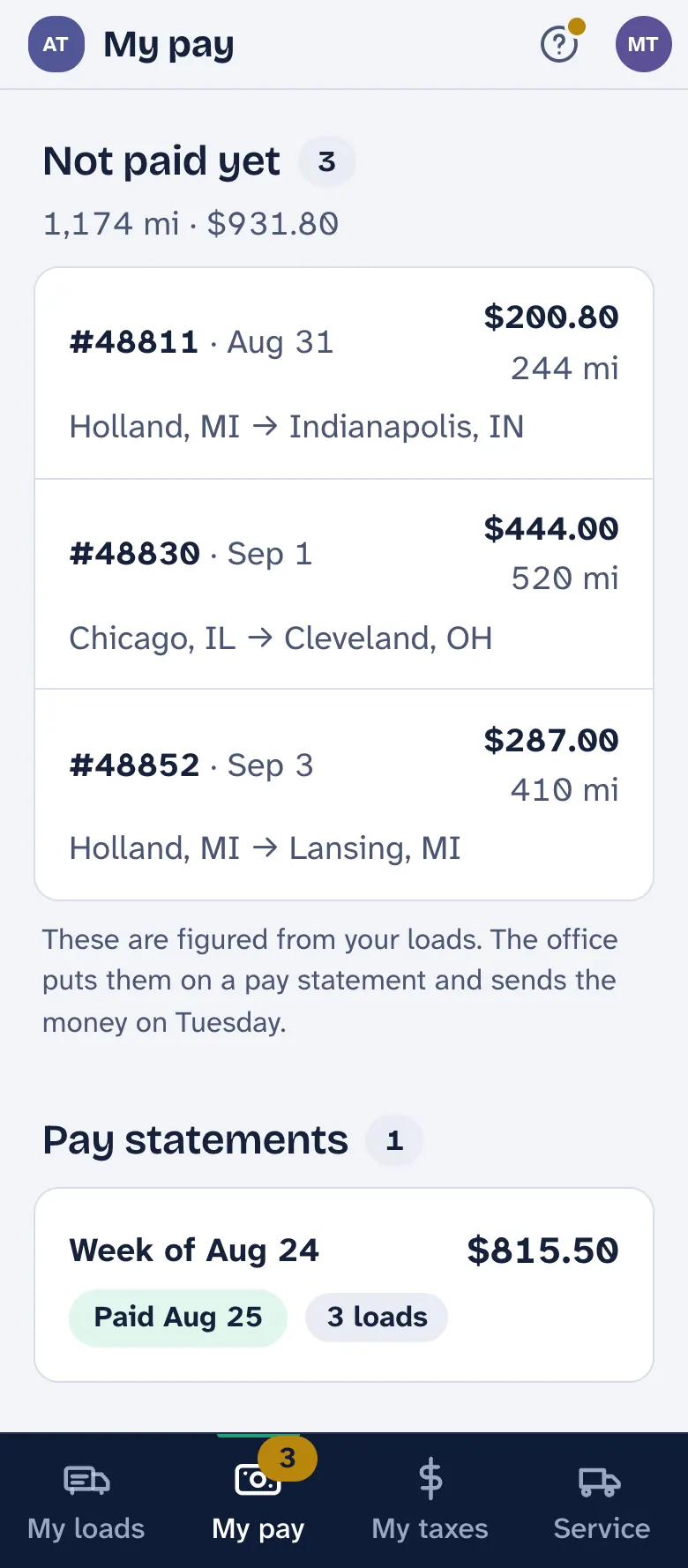
Not paid yet is completed loads that aren’t on a pay statement yet, each with what it is worth. The office puts them on a statement and sends the money. A statement says Coming to you until the money has gone, then Paid with the date. Tap one to see the math, load by load — miles here are calculated miles, what the carrier pays on, not the odometer.
My taxes
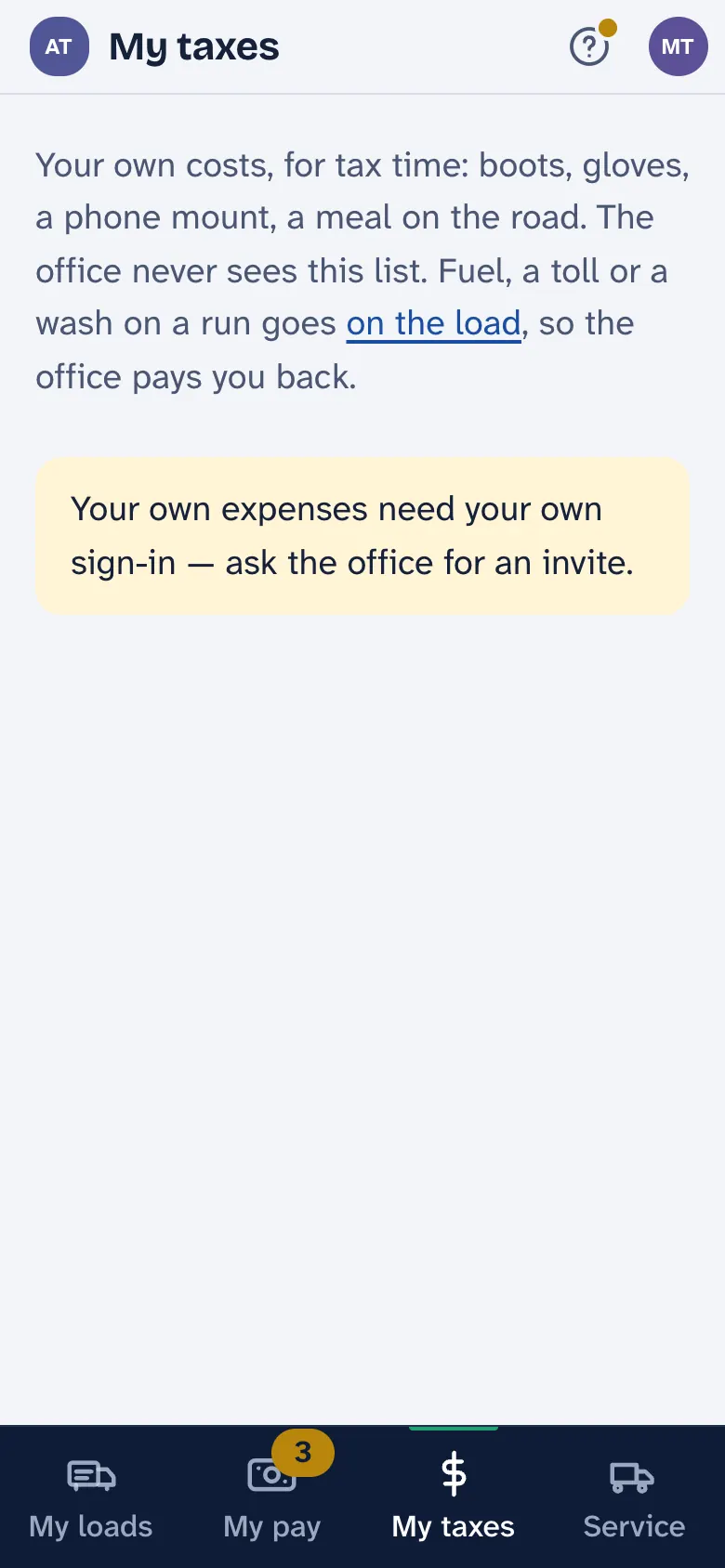
This page is only for your own taxes. Snap the receipt, check the amount and the date, pick a category, and it is on the year’s total for your accountant. The photo isn’t kept, only what it read. Paid for something on a run instead? That goes on the load, so the office pays you back — the page says so and offers to put it there.
Service
Had the truck serviced on the road? Log a service with a photo of the shop’s invoice and the office sees it. The page also shows what is coming up on your truck — the oil change, the inspection — and how soon.
The ? on every screen
Stuck? Tap the ? at the top of any screen. It walks the screen you are on, one part at a time, in a few words each.