
The reports
Every report and the question it answers, and how to print one, save it, or send a link that opens without a sign-in.
Reports are grouped by the question they answer: what the drivers earned, what the trucks did, what the carrier paid, and what is left. Every one sits in the same frame — a stepper for the period at the top, and under it Print, Save as PDF, Spreadsheet, Send… and Get a link.
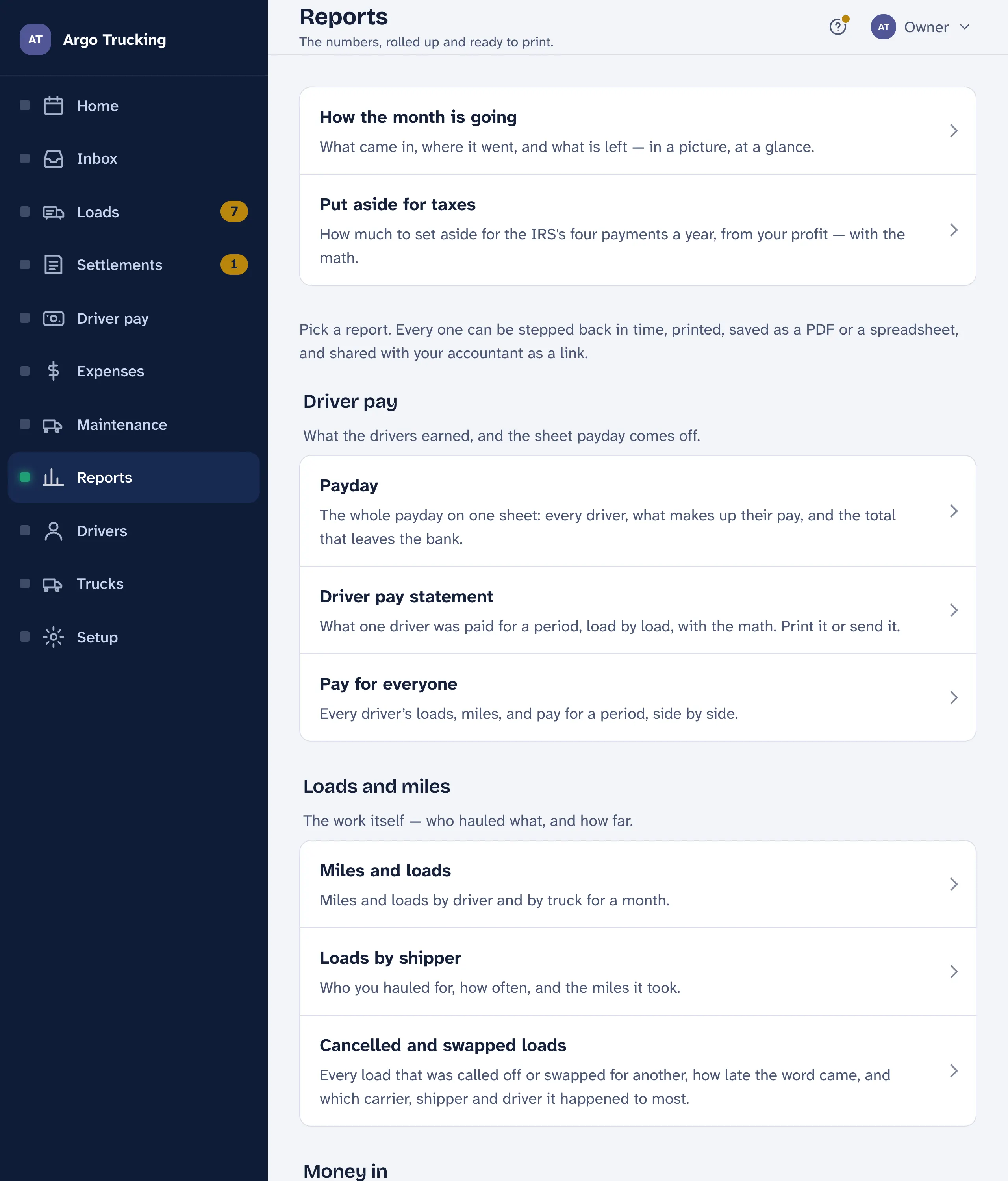
Driver pay
- Payday. The whole payday on one sheet: every driver, what makes up their pay, and the total that leaves the bank — and how much of it has already been sent. Print it on Sunday; it is the paper you pay from.
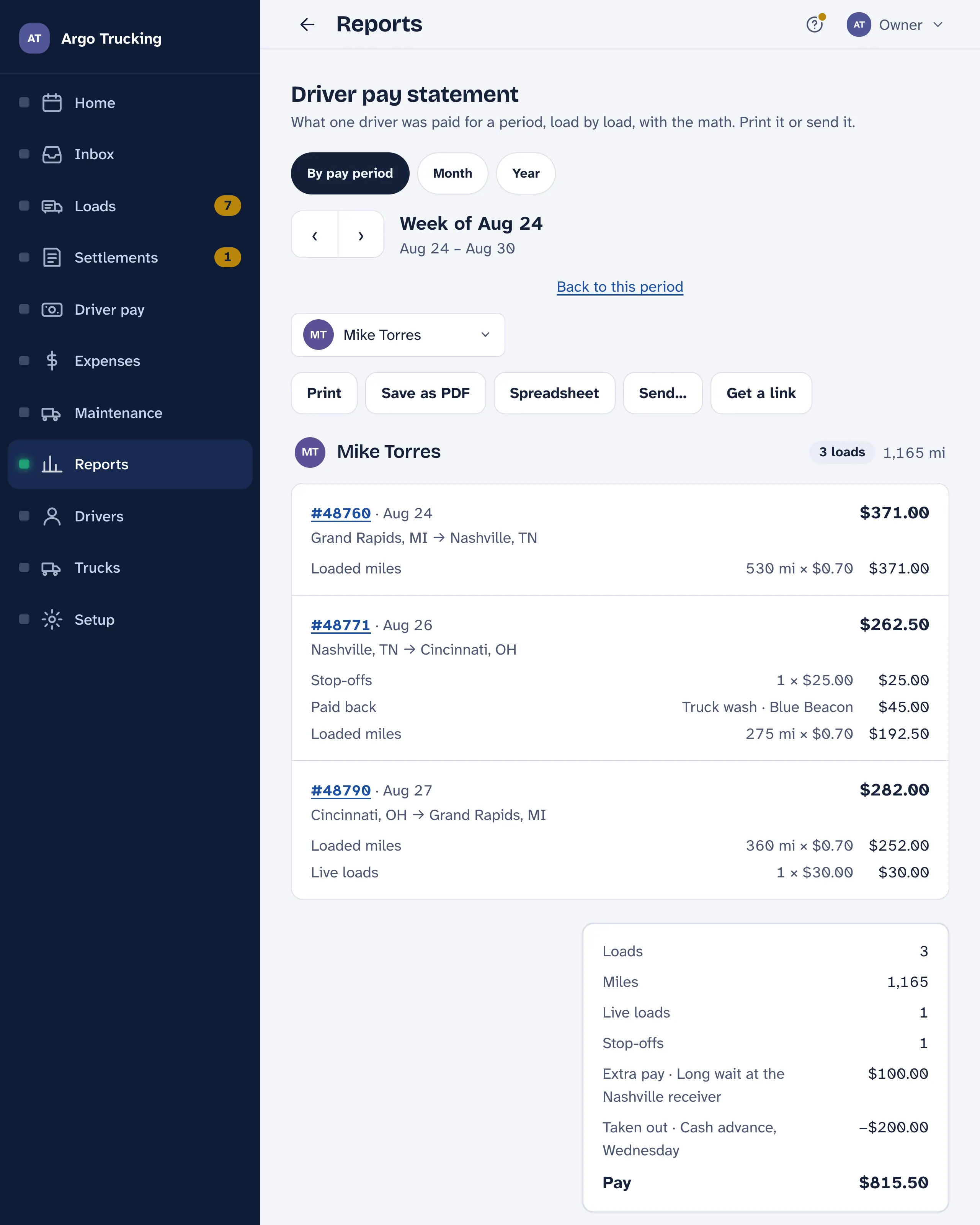
- Driver pay statement. One driver for a period, load by load, with the math — 253 mi × $0.70, each live load and stop-off, each hour of waiting — and the total. This is the statement that goes with their pay. Send… puts it on their phone.
- Pay for everyone. Every driver side by side: loads, miles, live loads, stop-offs, waiting hours and pay, with the totals underneath.
Loads and miles
- Miles and loads. How many loads each driver ran and the calculated miles they cover, and the same by truck. Cancelled loads are counted beside the name, not in the miles.
- Loads by shipper. Who you hauled for, how often, and the miles it took.
Money in
- What the carrier paid. Every settlement sheet by the day it was paid: the order pay, what the carrier took out, and the net that hit the bank — then the net by carrier and by truck.
- Load by load. Each load with what the settlement paid in and what the driver was paid for it, and the difference. A load still waiting on its settlement shows a blank, not a nought — it isn’t behind, it just isn’t in yet.
The books
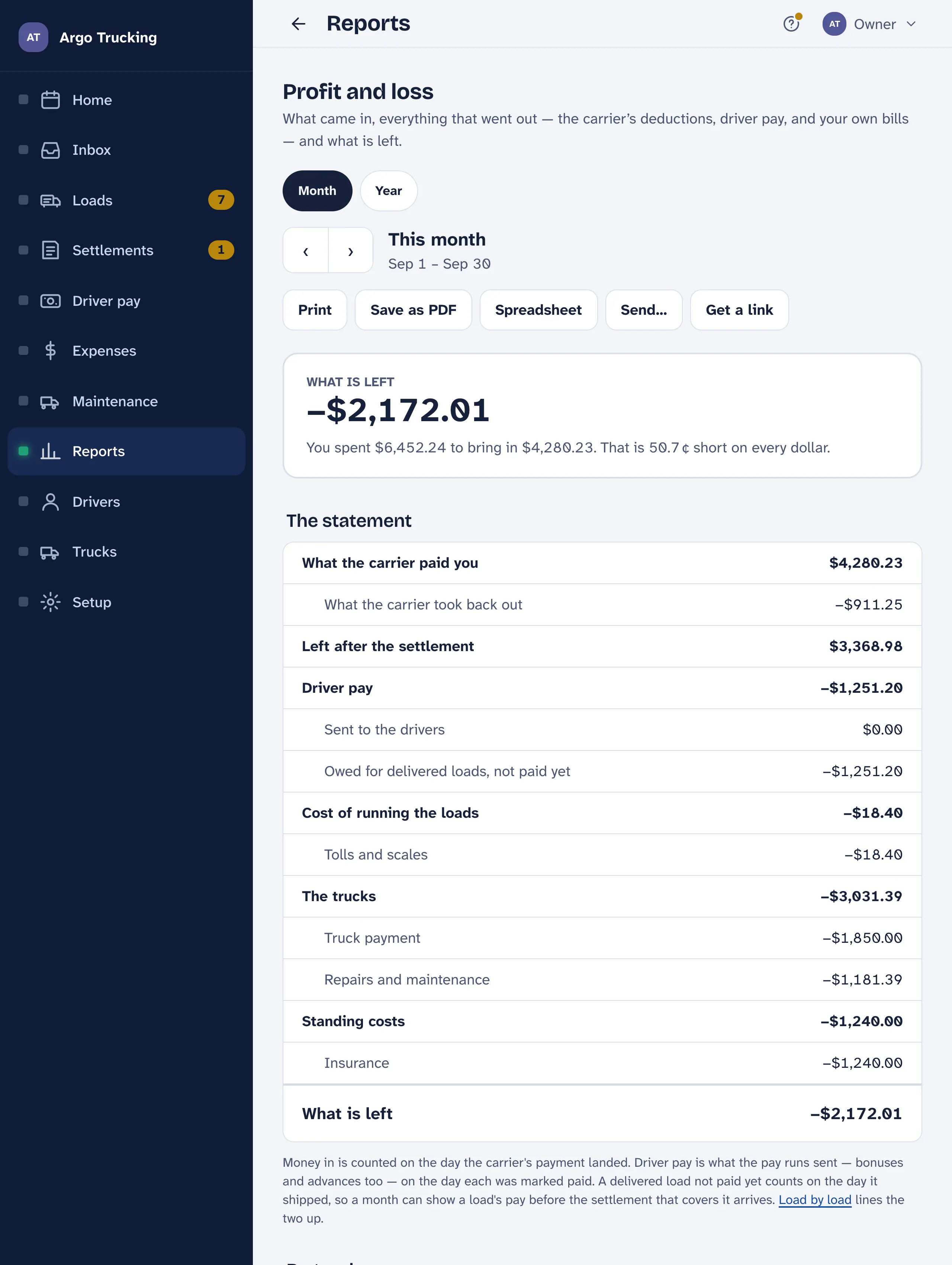
- Profit and loss. What the carrier paid you, less what they took back out, less driver pay, less your own bills by category — and what is left, as a number and as cents on every dollar. Money in counts on the day the carrier paid; driver pay counts on the day the load shipped, because that is when it was earned. The same statement is split by truck underneath.
- What a mile costs. The same books spread over the period’s calculated miles: what a mile brings in, what it costs, and what is left of it, line by line and by truck. Red means a mile cost more than it brought in.
- What you spent. Every receipt, three ways: by category, by truck, and one per line with who was paid.
- Fuel. Fuel and DEF the carrier took out of the settlements, what you paid at the pump, less the surcharge the carrier added back — per truck and in total. Then miles per gallon, price per gallon and fuel per mile for each truck and each driver, from the gallons on the slips. Last, every fuel deduction checked against the slip turned in for it; only what needs a look is listed.
- Maintenance. The service log added up: what each truck cost to keep on the road, by truck and by kind of work, and every service on its own line.
Year end
Year to date is the page for 1099 time: each driver’s loads, miles, live loads, stop-offs and waiting hours for the year and what they figure to, the extras per driver — bonuses, paid-back receipts, anything taken out — and the same year month by month. This year runs up to today; the arrows step back a year at a time. In January, send the accountant a link to last year and they have the figures. See Taxes, 1099s, and what LoadTally doesn’t do.
The frame every report shares
- The period. The arrows step back one period, month or year at a time; Back to this month brings you home. Switch to Year when the accountant wants the whole year on one sheet.
- Print and Save as PDF — the sheet as you see it. Spreadsheet opens the figures in Excel or Numbers.
- Send… opens your phone’s share sheet, or an email, with the report attached.
- Get a link makes a page your accountant can open without signing in. It holds the figures as they stood the day you made it, so it never changes under the person reading it.
Shared links
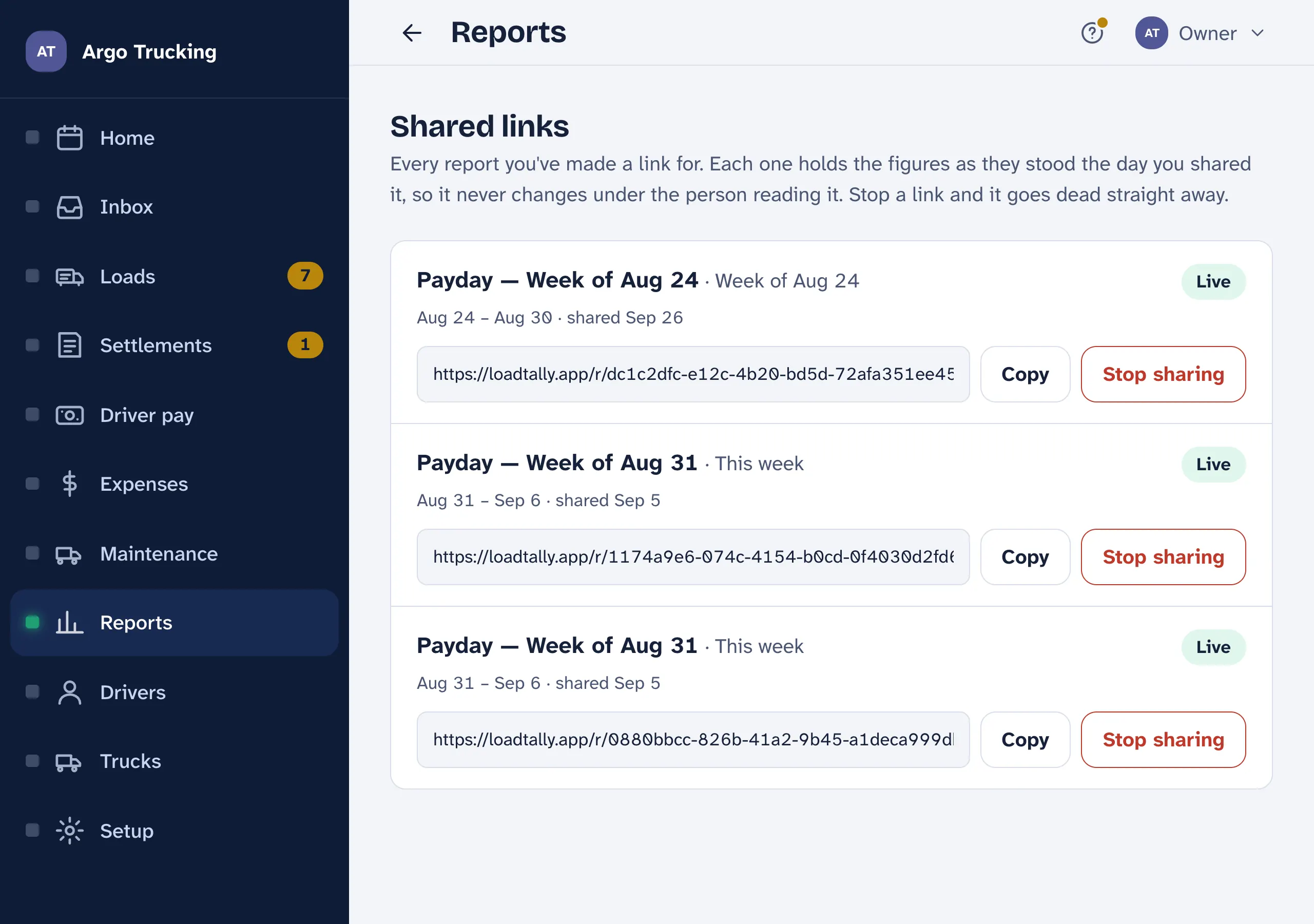
Every link you have made, with the report, the span it covers, and the day you shared it. Copy puts it on the clipboard for a text or an email. Stop sharing stops it straight away — anyone holding it sees nothing — and it stays on the list as stopped until you remove it. Made one by mistake? Stop it; nothing is lost on your side.
An accountant with their own login sees only Reports — the menu is just that one item. Add them under Setup › People as the accountant.